
Google Nearby Share for Windows PCs Goes Global
Google Nearby Share for Windows PCs Goes Global
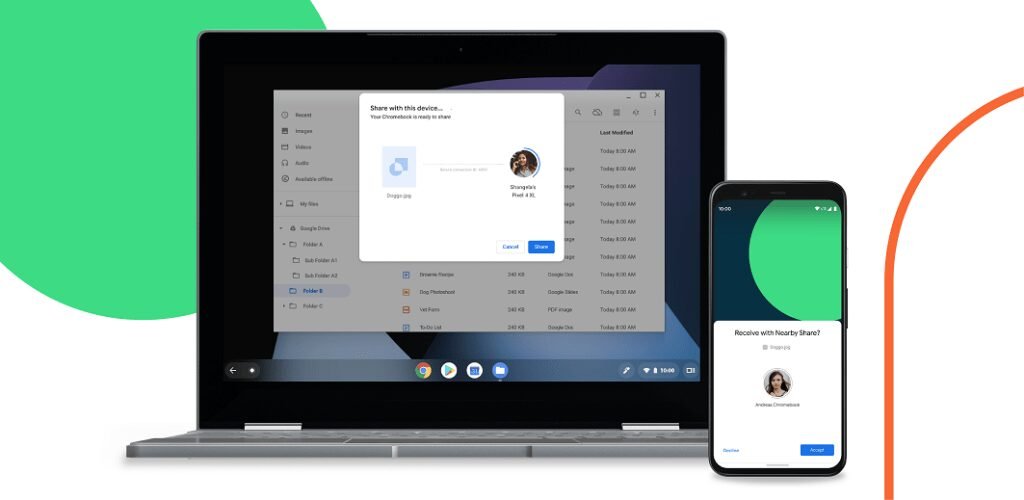
Google Nearby Share for Windows PCs is a popular feature that allows Android users to exchange files with their desktop or laptop, wirelessly and through Android’s native menus. Initially launched in a few countries with a primary focus on the United States, Google has now quietly expanded support to other regions. On a support page, Google announced that Nearby Share for Windows PCs is now available in “most countries globally,” including portions of Europe and many other countries worldwide.
Nearby Share for Windows PCs is a convenient way to exchange files without the need for cables or external drives. This feature is generally very fast and reliable, even in this early beta. However, some regions were unable to install Nearby Share previously with success, but it wasn’t officially supported or directly available for download until now.
Nearby Share for Windows PCs is still in beta and restricts a few regions from using the app. These regions include Cuba, Iran, North Korea, and Syria. Google has not yet announced an official release date for Nearby Share for PCs, and there have been no changes to system requirements, including the lack of official support for ARM-based devices.
While Nearby Share for Windows PCs has many advantages, such as fast and reliable file exchange, it also has some disadvantages, such as restricted availability in a few regions and a lack of an official release. Despite these limitations, Nearby Share for Windows PCs remains a popular feature, and Google’s recent expansion of availability to nearly all countries around the globe is a welcome development for users worldwide.
Here are all the details you need to know about Android’s Nearby Share for Windows PCs.
Using Nearby Share on Windows PCs is easy. All you need is a Windows PC that supports Bluetooth and Wi-Fi and has the latest Windows 10 update installed. Here are the steps to use Nearby Share:
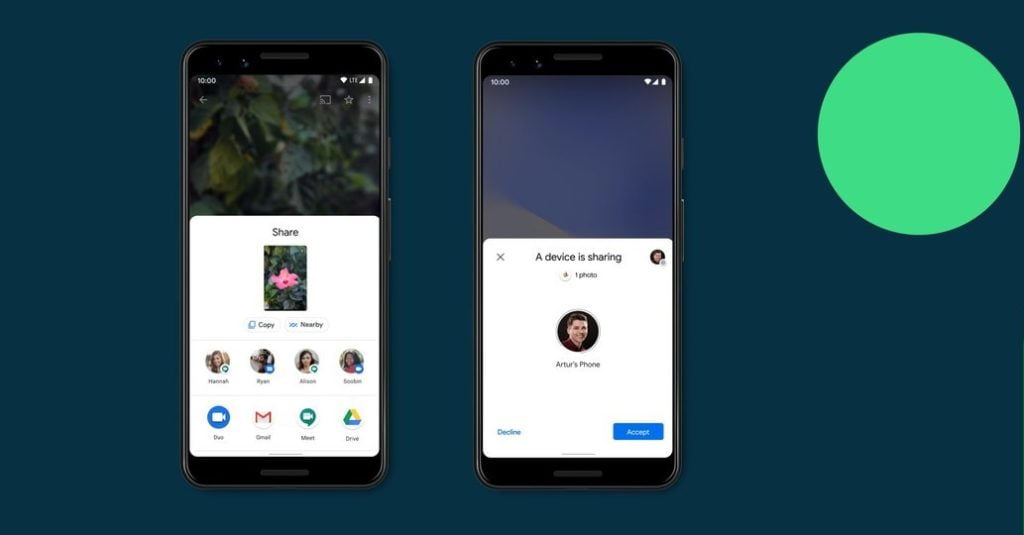
- Open the file you want to share.
- Click on the “Share” icon.
- Select “Nearby Share” from the list of options.
- Choose the device you want to share the file with.
That’s it! The file will be transferred to the other device wirelessly using Bluetooth and Wi-Fi. You don’t need an internet connection to use Nearby Share, which makes it a convenient way to share files, especially when you’re in a location without internet access.
Compatibility
Nearby Share is compatible with most Android devices running Android 6.0 or later and Windows 10 PCs running the latest update. However, the feature may not be available on all devices due to hardware or software limitations.
Privacy and Security
One of the best things about Nearby Share is that it’s secure and private. You can choose who can see your device and share files with you. You can also turn off Nearby Share at any time to prevent other users from sharing files with you.
Speed and Reliability
Nearby Share is designed to be fast and reliable. The file transfer speed can reach up to 480 Mbps, which is much faster than traditional Bluetooth file transfer. The feature also uses a peer-to-peer connection, which means the file transfer is direct and doesn’t rely on an internet connection.
Final Thoughts
Android’s Nearby Share for Windows PCs is a great feature that allows you to share files quickly and easily. With its fast transfer speed, privacy and security features, and compatibility with most devices, it’s a convenient way to transfer files without the need for an internet connection. If you’re a Windows user, we highly recommend trying out this feature.
Google’s expansion of Nearby Share for Windows PCs is a significant development that will benefit users worldwide. With the availability of this feature in most countries globally, Android users can now enjoy the convenience of exchanging files wirelessly and through Android’s native menus with their desktop or laptop.
