
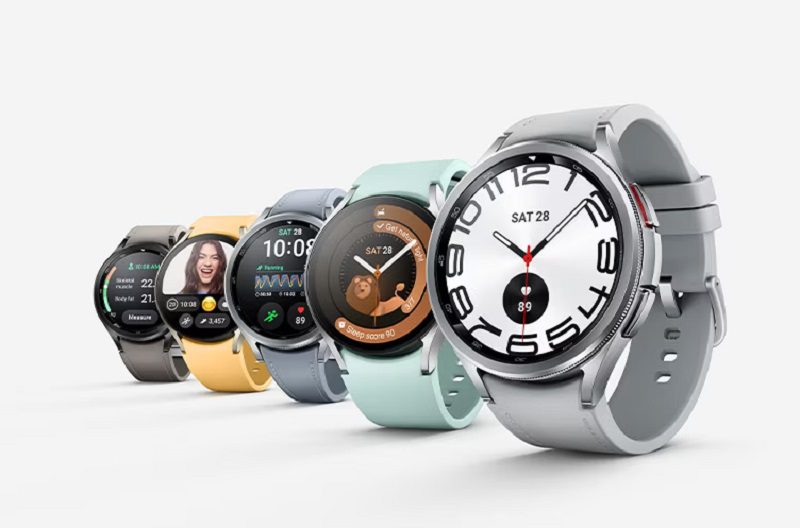
How to Mimic the Apple Watch 9 Double-Tap on Galaxy Watches
How to mimic the Apple Watch 9 double-tap on Galaxy Watches. The Apple Watch Series 9 came with an innovative double-tap gesture feature, aimed to make user interactions like answering calls or controlling music even more effortless. But did you know that Samsung’s Galaxy Watches have a similar, possibly even more versatile feature? For those who thought this kind of convenience is only for Apple users, we have some good news. So, let’s dive into how to enable and utilize the universal gestures on Galaxy Watches.
Universal Gestures: The Samsung Galaxy Equivalent to Double-Tap
If you’re a proud owner of a Galaxy Watch 4 or above, you have access to the interactive feature named “Universal Gestures.” This tool, pre-dating Apple’s latest announcement, offers users a flexible way to control various functions. How does it work? It uses one-handed gestures, such as pinching or flicking, detected by the watch’s sensors. Here’s how to turn on and tweak this underrated feature.
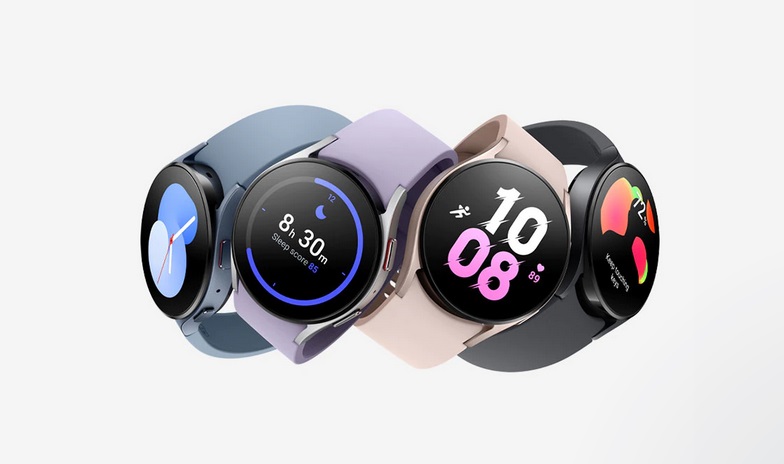
Enabling Universal Gestures on Galaxy Watches
- Access the Settings on your Galaxy Watch.
- Navigate to the Accessibility option.
- Select Interaction and Dexterity.
- At this point, you will find the Universal Gestures option. Simply turn it on and follow through the tutorial.

- Double-Tap on Galaxy Watches
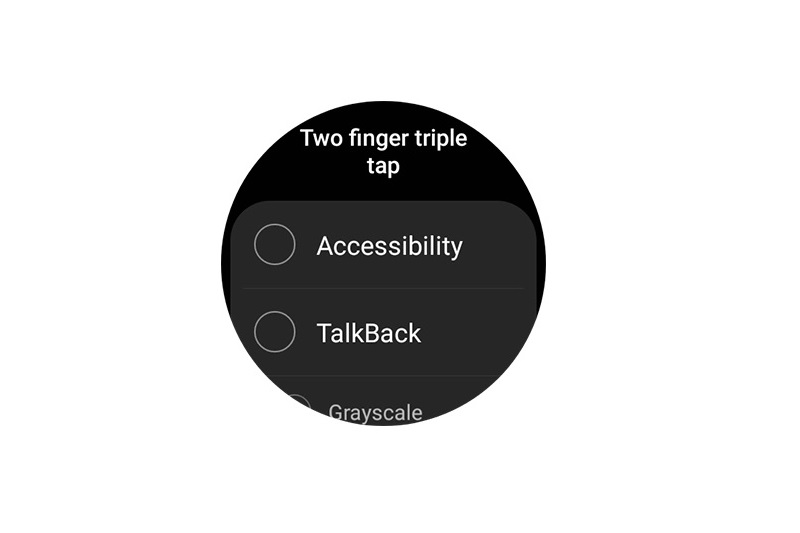
Once you activate it, a yellow ring appears around the watch display to indicate that gestures are enabled.
Adapting Universal Gestures to Your Needs
By default, universal gestures on Galaxy Watches come with base functions: moving to the next/previous item, tapping, and opening the Action Menu. What sets this feature apart is its customizable nature. Eager to navigate back to a previous screen with just a flick of your wrist? You can set it up this way!
Some limitations do apply, like needing to go back to specific apps for certain functions, but overall, universal gestures offer flexibility and adaptability. Also, when gestures are set to “always on,” a constant indicator is displayed. However, it can be disabled easily.
Customization Options and How to Turn Off Universal Gestures
Further customization options allow you to change the focus indicator color, set favorite actions for the action menu, and adjust activation gestures according to preference.
If, after exploration, you decide to switch off Universal Gestures, it’s as easy as pie: go to Accessibility settings and turn off the feature.
Final Thoughts: Is Double-Tap on Galaxy Watches a Game-Changer?
The introduction of double-tap gestures by Apple has certainly been impressive. Yet, the universal gestures feature on Samsung Galaxy Watches, though not new, offers a versatility that goes well beyond simple double-tap interactions. It serves as a fantastic tool for navigating through the watch’s interface, making it a strong competitor to Apple’s double-tap.
After all, who doesn’t like the ease of answering calls or navigating menus with a simple flick of the wrist?
