
Step-by-Step Guide: How to Enable iPhone ‘Guided Access’
Step-by-Step Guide: How to Enable iPhone ‘Guided Access’
“Guided Access” on an iPhone is a feature that allows you to create a temporary user profile on your phone for someone else to use. This mode is designed to protect your privacy and prevent others from accessing your personal information, apps, and settings. When you enable guest mode, the person using your phone will have limited access to your phone’s features and data.
Enabling the “Guided Access” on your iPhone is a great way to let someone else use your phone without giving them full access to all of your personal information. Here are the steps to do so:
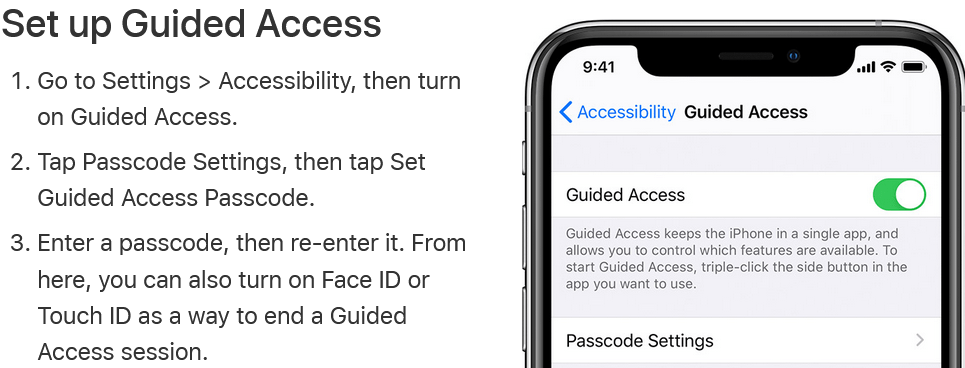
- Go to Settings > Accessibility, then turn on Guided Access.
- Tap Passcode Settings, then tap Set Guided Access Passcode.
- Enter a passcode, then re-enter it. From here, you can also turn on Face ID or Touch ID as a way to end a Guided Access session.
Now that Guided Access is enabled, you can set it to limit what apps and features are available to the guest user. Here’s how:
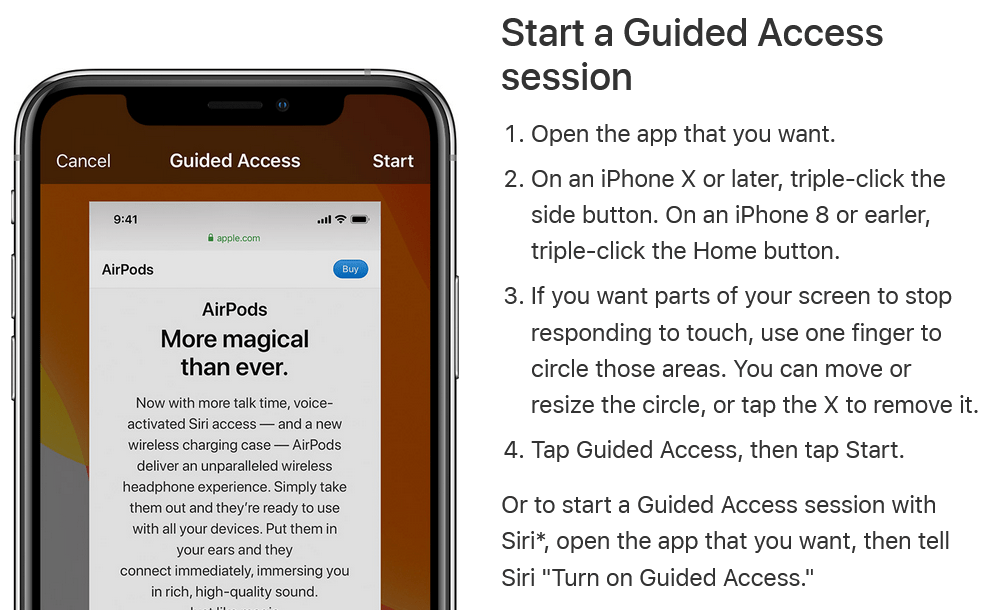
- Open the app that you want.
- On an iPhone X or later, triple click the side button. On an iPhone 8 or earlier, triple click the Home Button.
- If you want parts of your screen to stop responding to touch, use one finger to circle those areas. You can move or resize the circle, or tap the X to remove it.
- Tap Guided Access, then tap Start.
Or to start a Guided Access session with Siri*, open the app that you want, then tell Siri “Turn on Guided Access.”
That’s it! Your iPhone is now in Guided Access, and the person you handed it to will not have access to your personal information, apps, or settings. They will only be able to use the phone for basic functions like making calls and browsing the internet. When they are finished, simply tap on “End” next to the Guided Access to return your phone to normal mode.
When the guest user tries to access an app that is not included in the app limit, they will be prompted to enter the Screen Time passcode. This will prevent them from accessing any apps. For example, they will not be able to see your contacts, photos, or messages. They also won’t be able to download or install any apps, make any changes to your phone’s settings, or access any of your accounts or services that require a password.
Guided Access is a useful feature when you want to lend your phone to someone else but don’t want them to have access to your personal information. It can also be helpful when you want to restrict access to certain apps or features on your phone, such as when giving your phone to a child or using it in a public setting.
