
How to Fix Format Disk Errors Without Formatting
How to Fix Format Disk Errors Without Formatting
Format disk errors typically refer to errors that occur when trying to format a hard drive or other storage device. Formatting is the process of preparing a storage device for use by creating a file system and organizing the space on the drive. However, sometimes errors can occur during the formatting process that prevent it from completing successfully.
These errors can be caused by various factors, including disk corruption, bad sectors on the drive, software conflicts, or hardware malfunctions. When format disk errors occur, they may prevent you from accessing or using the storage device, and can cause data loss.
There are several methods you can try to fix format disk errors without formatting your hard drive on Windows. Here are some steps you can follow:
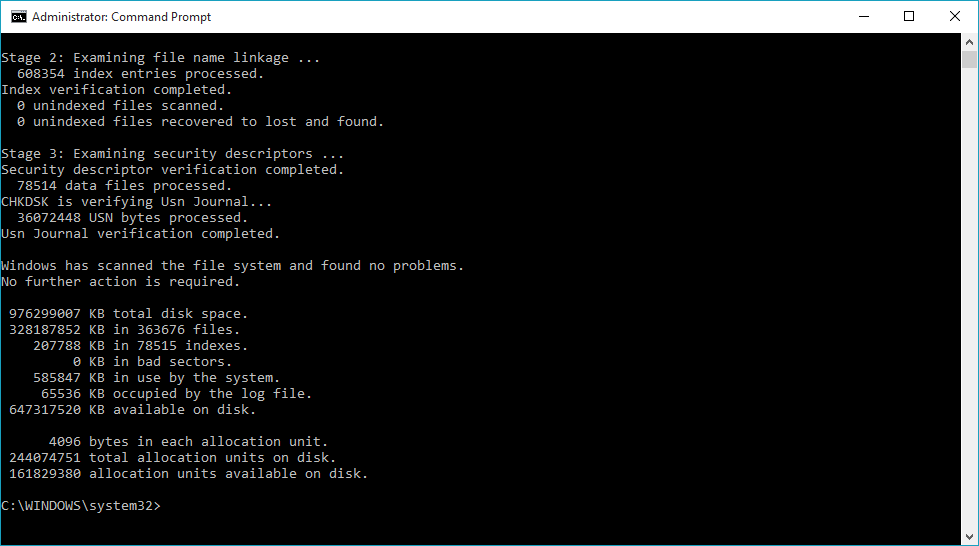
- Use the Check Disk (CHKDSK) Utility: This is a built-in tool in Windows that can help to scan and repair errors on the disk. You can use it by following these steps:
- Press the Windows key + X and select Command Prompt (Admin).
- Type chkdsk /f /r and press Enter. This will start a scan of your hard drive and fix any errors found.
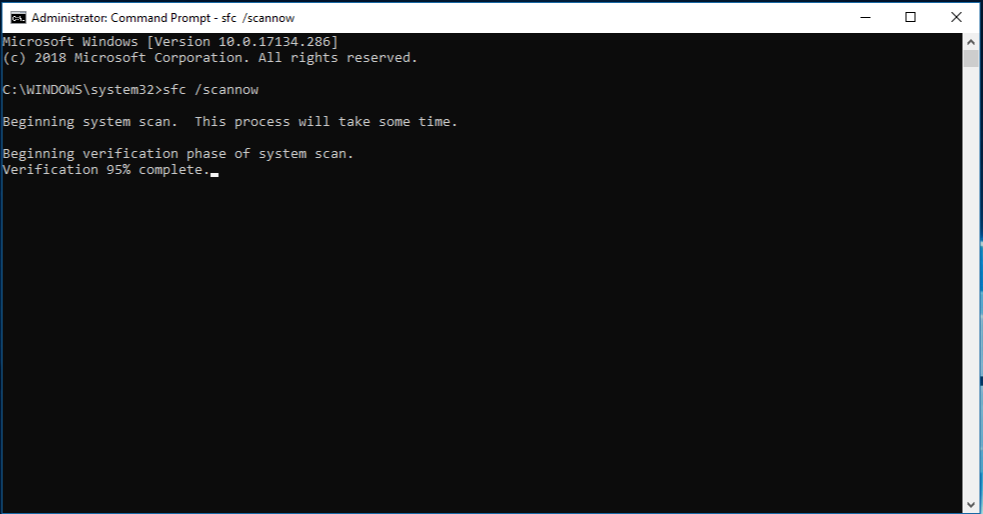
- Run SFC Scan: System File Checker (SFC) is a tool in Windows that can scan and repair corrupted system files. To run an SFC scan, follow these steps:
- Press the Windows key + X and select Command Prompt (Admin).
- Type sfc /scannow and press Enter. This will start a scan of your system files and repair any errors found.
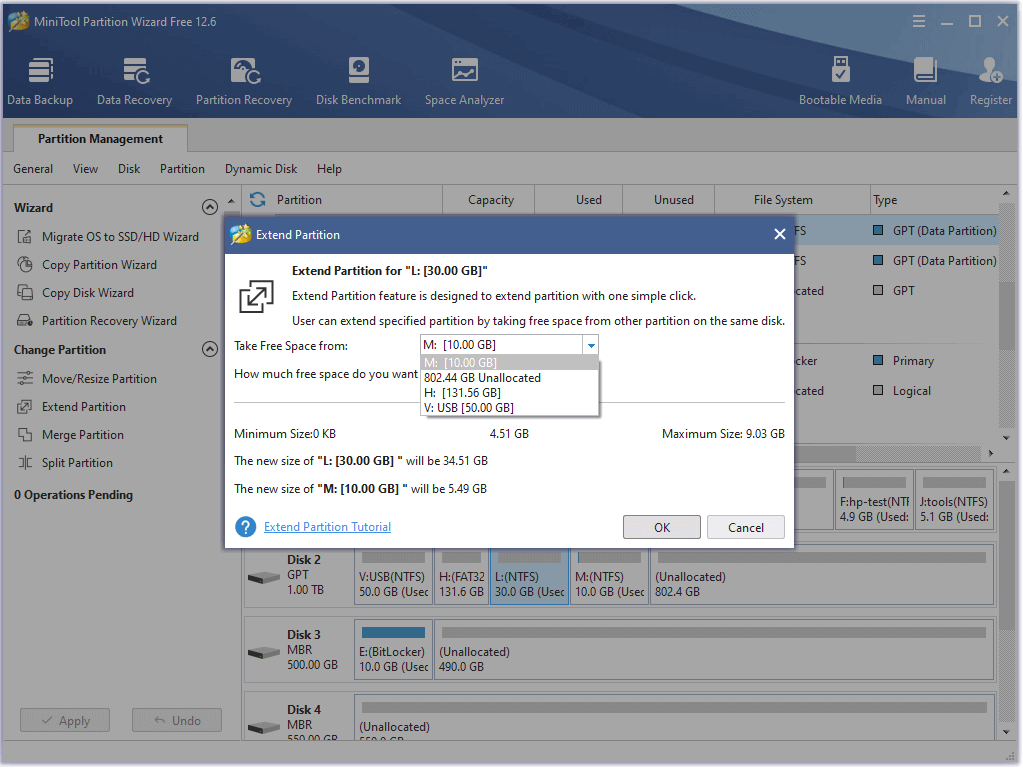
3. Use Third-Party Disk Repair Tools: There are many third-party disk repair tools available on the internet that can help you fix disk errors. Some popular options include EaseUS Partition Master, MiniTool Partition Wizard, and Stellar Data Recovery.
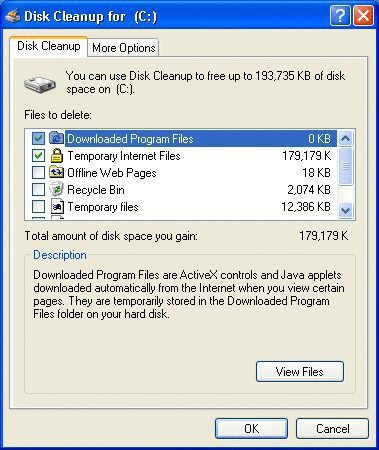
4. Use Disk Cleanup Utility: Sometimes, temporary files and unnecessary data can cause errors on your hard drive. You can use the Disk Cleanup utility to remove these files and free up space on your hard drive. Follow these steps:
- Press the Windows key + X and select File Explorer.
- Right-click on your hard drive and select Properties.
- Click on Disk Cleanup.
- Select the files you want to delete and click OK.
- Update Your Drivers: Outdated drivers can also cause errors on your hard drive. You can update your drivers by following these steps:
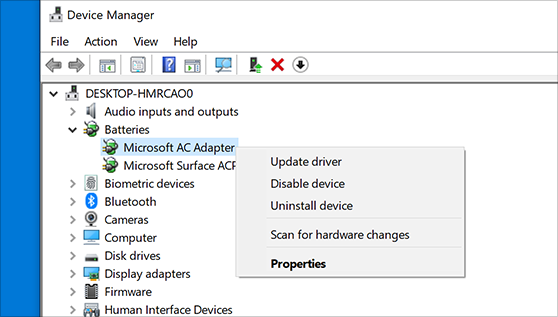
- Press the Windows key + X and select Device Manager.
- Right-click on the device and select Update driver.
- Follow the on-screen instructions to update the driver.
In summary, these are some methods you can try to fix format disk errors without formatting your hard drive on Windows. It’s important to back up your important data before attempting any of these methods, just in case something goes wrong. Therefore, it’s always a good practice to regularly back up your important data to prevent data loss in case of such errors.
