
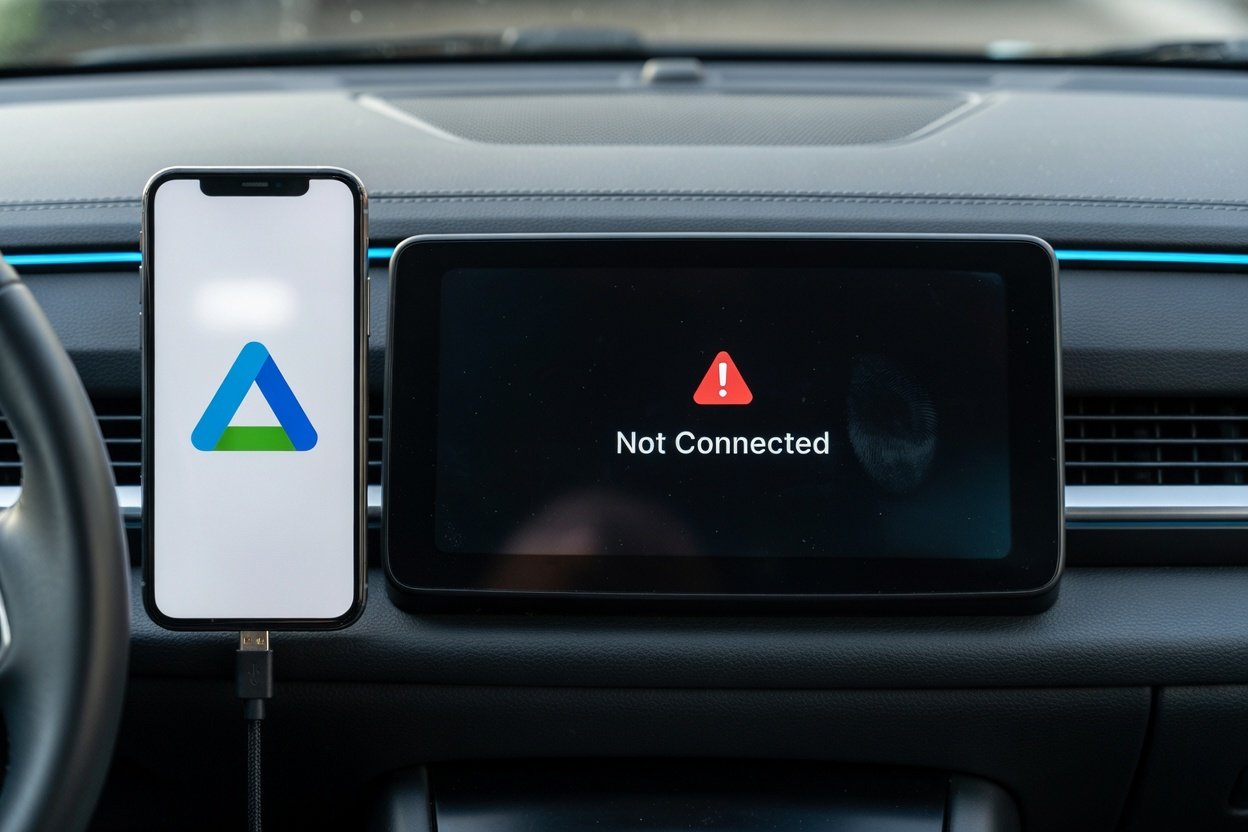
How to Fix Android Auto Not Connecting to Phone (2026)
You hop in your car, plug in your phone, and… nothing. No navigation. No music. No Google Assistant. Just a blank screen and a whole lot of frustration.
If Android Auto is not connecting to your phone in 2026, you’re not alone. Over the past few months, a surge of users — especially on Google Pixel and Samsung Galaxy devices — have reported connection problems ranging from blank screens to random disconnections mid-drive.
The good news? Most of these issues are fixable in under 10 minutes. This guide walks you through every proven solution, from quick checks to advanced resets.
Why Is Android Auto Not Connecting?
Before diving into fixes, it helps to know what’s actually going wrong. The most common culprits behind Android Auto connection failures include:
- Faulty or charge-only USB cable — the #1 cause of wired connection issues
- Incorrect USB mode (phone set to “Charging only” instead of data transfer)
- Missing or revoked app permissions
- Outdated Android Auto app or phone software
- Corrupted app cache or data
- Bluetooth/Wi-Fi conflicts (for wireless connections)
- Car infotainment firmware bugs
- Recent Android or app update breaking compatibility
2026 Update: Google confirmed in late March 2026 that a bug caused widespread Android Auto connection failures on Pixel and Samsung Galaxy phones — affecting both wired and wireless setups. A fix has been rolling out via the Play Store, so updating the app should be your very first step.
Before You Begin: Quick Checklist
Run through these before trying any fix:
- Your phone runs Android 8.0 (Oreo) or newer
- The Android Auto app is installed and updated (check Google Play)
- Your car supports Android Auto (check your vehicle manual or Google’s compatibility list)
- For wireless: your phone runs Android 11 or newer and your car supports wireless Android Auto
Fix 1: Update the Android Auto App
This is the single most important step right now. Google’s March 2026 patch addresses the connection bug affecting Pixel and Galaxy phones.
- Open the Google Play Store
- Search for Android Auto
- Tap Update if available
- Restart your phone after updating
Also update Google Play Services, as Android Auto relies on it heavily. Keep in mind that Google’s March Android update brought significant system-level changes — and Google has been decoupling Android feature updates from full OS releases, meaning fixes can arrive via the Play Store without waiting for a full Android version update.
Fix 2: Check and Replace Your USB Cable
[Insert Image 2 — USB Cable here]
A bad cable is the leading cause of Android Auto failures on wired setups. Many cables look identical but only support charging — not data transfer.
What to look for:
- Use the original cable that came with your phone
- Keep it under 1 meter (3 feet) in length — Google recommends this
- Avoid USB hubs, extensions, or adapters
- Look for cables labeled “data transfer” or USB-IF certified
How to test your cable:
- Connect your phone to your car
- Open Android Auto → Settings → Connection help → USB startup diagnostic
- The tool will tell you if your cable is suitable
If the cable fails, replace it with a high-quality data cable — not a cheap charging-only one.
Fix 3: Change Your USB Mode to Data Transfer
[Insert Image 3 — USB Mode Settings here]
Your phone might be defaulting to “Charging only” mode when plugged in, which blocks Android Auto entirely.
- Plug your phone into your car
- Pull down the notification drawer
- Tap the USB notification (it may say “Charging this device”)
- Select File Transfer, MTP, or Android Auto
This single step fixes the issue for a large number of users.
Fix 4: Check Android Auto App Permissions
[Insert Image 4 — App Permissions here]
Android Auto requires several permissions to function. If any were denied — or revoked by a system update — it won’t connect. Note that if you’re on a Samsung device, One UI handles app permissions slightly differently from stock Android, so the exact path may vary.
- Go to Settings → Apps → Android Auto
- Tap Permissions
- Enable all required permissions: Location, Microphone, Contacts, Phone, SMS, Storage
Missing even one of these can silently break the connection.
Fix 5: Restart Both Your Phone and Car System
Simple but surprisingly effective — especially after an update or a glitch.
- Turn off your car’s infotainment system completely
- Restart your phone
- Wait 30 seconds
- Start your car and reconnect
This clears temporary session data that may be causing conflicts.
Fix 6: Clear Android Auto Cache and Data
A corrupted cache — often triggered by app updates — can prevent Android Auto from launching properly.
- Go to Settings → Apps → Android Auto
- Tap Storage
- Tap Clear Cache, then Clear Data
- Reconnect your phone to the car
Note: Clearing data will reset your Android Auto preferences, but it won’t delete anything important.
Fix 7: Remove and Re-Pair Your Phone from the Car System
Your car may have stored a conflicting or outdated connection profile for your phone. If you’ve been having similar wireless pairing trouble with other devices, our guide on Bluetooth not working on Windows 11 covers the same re-pairing logic that applies here.
- Go to your car’s Bluetooth or Android Auto settings
- Find your phone in the paired devices list
- Delete/forget it
- On your phone, also forget the car from Bluetooth settings
- Restart both devices and pair from scratch
This is especially effective when the car shows your phone as connected but Android Auto still won’t launch.
Fix 8: Fix Wireless Connection Issues (Bluetooth + Wi-Fi)
Wireless Android Auto uses both Bluetooth and Wi-Fi simultaneously. If either is having problems, the connection drops. This is similar to how wireless conflicts can cause Windows 11 Wi-Fi disconnecting — interference and signal instability are platform-agnostic problems.
Steps to fix:
- Make sure both Bluetooth and Wi-Fi are ON before connecting
- Forget the car’s Bluetooth connection on your phone and re-pair it
- Go to Settings → System → Reset options → Reset Wi-Fi, mobile & Bluetooth for a full wireless reset
- Avoid connecting near areas with heavy Wi-Fi interference (crowded parking lots, etc.)
If you use an AAWireless adapter, open its companion app — it includes built-in diagnostic tools specifically for this issue. Also note that certain network settings like Private DNS mode on Android or active VPNs can interfere with the Wi-Fi Direct connection Android Auto relies on — try disabling them temporarily.
Fix 9: Disable Developer Options or USB Debugging
If you have Developer Options enabled on your phone, certain settings — particularly USB debugging — can interfere with Android Auto.
- Go to Settings → Developer Options
- Toggle off USB Debugging
- Alternatively, turn off Developer Options entirely if you don’t need them
Also, if you’re enrolled in the Android Auto Beta program, leave it. Beta builds — similar to the issues seen with Android 13 QPR2 beta updates on Pixel phones — can introduce instability that breaks car connectivity.
- Open the Android Auto page on Google Play
- Scroll down and tap Leave the beta
- Update to the stable version
Fix 10: Update Your Car’s Infotainment Firmware
Car manufacturers regularly push firmware updates that improve Android Auto compatibility. If your car’s software is outdated, it may not work properly with newer versions of Android Auto.
- Check your car’s settings menu for a software update option
- Visit your car manufacturer’s website for manual update instructions
- If unsure, contact your dealership — some updates require a service visit
Still Not Working? Try These Advanced Steps
If none of the above fixes work, here are a few more things to try:
- Try a different USB port — some car USB ports are charge-only; use the one labeled “Data” or “AA”
- Test with a different phone — if it works, the issue is with your phone; if not, it’s the car
- Reinstall Android Auto — uninstall the app, restart your phone, and reinstall from the Play Store
- Reset network settings — Go to Settings → System → Reset options → Reset network settings
- Factory reset (last resort) — only if all else fails, as this wipes your phone entirely
Summary Table
| Fix | Best For |
|---|---|
| Update Android Auto app | Everyone — especially Pixel & Galaxy users |
| Replace USB cable | Wired connection failures |
| Change USB mode to data transfer | Phone not recognized by car |
| Enable app permissions | App connects but crashes or doesn’t launch |
| Clear cache & data | Issues after an app update |
| Re-pair phone from car system | Car shows connected but AA doesn’t open |
| Reset Bluetooth & Wi-Fi | Wireless connection drops |
| Disable USB debugging | Wired connection conflicts |
| Update car firmware | Persistent incompatibility issues |
| Try different USB port | Car has multiple ports |
Frequently Asked Questions
Why did Android Auto suddenly stop working? A recent app update, phone OS update, or the March 2026 bug affecting Pixel and Galaxy devices is likely the cause. Update the Android Auto app from the Play Store first.
Does Android Auto work wirelessly? Yes, but your phone needs Android 11 or newer, and your car must support wireless Android Auto. Both Bluetooth and Wi-Fi must be active simultaneously.
My phone charges but Android Auto won’t start — why? Your USB mode is probably set to “Charging only.” Pull down the notification drawer, tap the USB notification, and switch it to File Transfer or Android Auto mode.
Can a bad USB cable cause Android Auto to fail? Absolutely. Charge-only cables are the most common cause of wired connection failures. Always use a certified data transfer cable under 1 meter long.
Is Android Auto compatible with my car? Check Google’s official compatibility list at android.com/auto/compatibility. If your car isn’t listed, you may need an aftermarket head unit.
Conclusion
Android Auto not connecting is a frustrating problem — but it’s almost always solvable. Start with the basics: update the app, check your cable, and verify your permissions. If you’re on a Pixel or Galaxy device, the March 2026 Play Store update should resolve the most persistent connection bugs.
Work through the fixes in order, and you’ll likely have Android Auto back up and running before you even leave your driveway. And as Google continues integrating AI deeper into Android, including Gemini voice assistance in Android Auto, keeping your app updated isn’t just about fixing bugs — it’s about unlocking new features too.
For more troubleshooting guides, explore our full Android tips and tricks section. And if you’re dealing with battery drain on a different device, don’t miss our guide on iPhone battery draining fast.
