

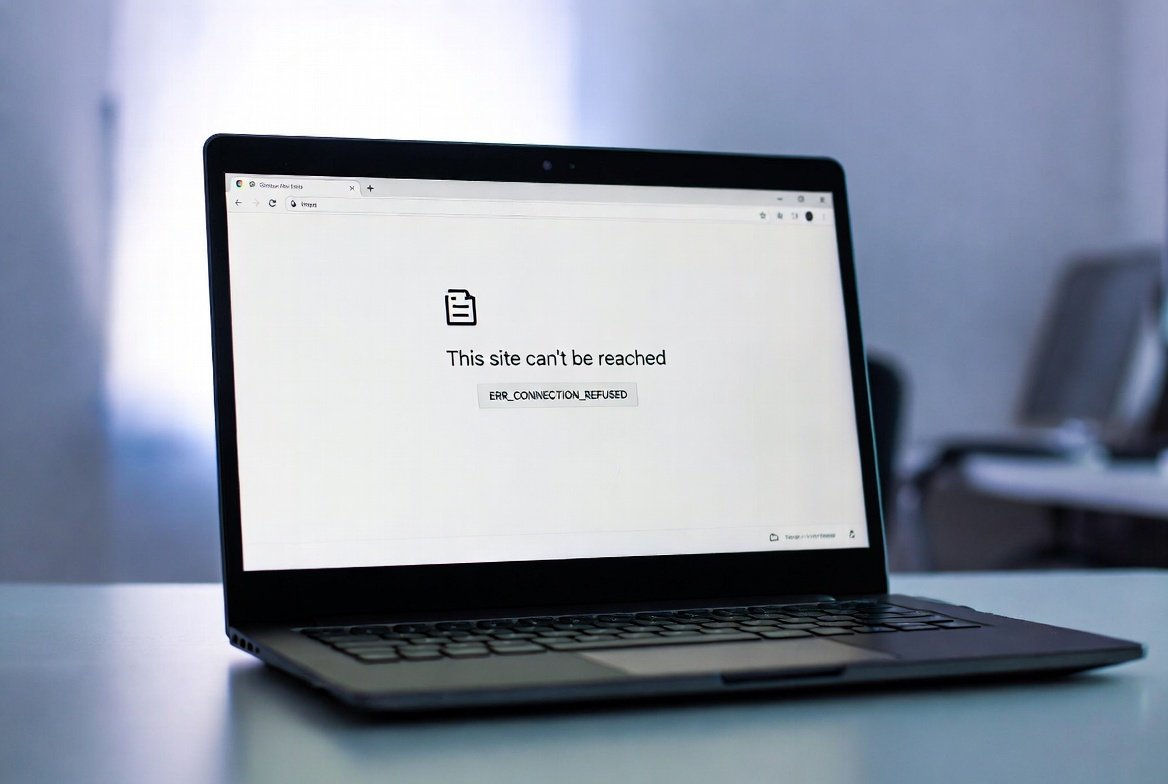
Google Chrome not loading pages is one of the most frustrating browser problems users face in 2026. You click a link, Chrome spins endlessly, and nothing loads. Or you get an error like ERR_CONNECTION_REFUSED, ERR_NAME_NOT_RESOLVED, or simply a blank white page.
The good news is that Google Chrome not loading pages is almost always fixable without reinstalling Chrome or calling your internet provider. In this complete guide we walk you through every proven fix to get Chrome loading pages again in minutes.
Why Is Google Chrome Not Loading Pages?
Before jumping into fixes understanding the cause helps you find the right solution faster. Common reasons Chrome stops loading pages include:
- Corrupted browser cache and cookies
- DNS cache needs flushing
- Faulty Chrome extensions blocking pages
- Outdated Chrome version
- VPN or proxy conflicts
- Firewall or antivirus blocking Chrome
- Network adapter issues
- Chrome profile corruption
- Hardware acceleration conflicts
- Wrong DNS server settings
Now let’s fix Google Chrome not loading pages step by step.


Fix 1: Check Your Internet Connection First
Before blaming Chrome make sure your internet is actually working.
1. Try loading a page in another browser
   (Firefox, Edge, Safari)
2. If other browsers work → Chrome is the problem
3. If no browsers work → Internet connection issue
4. Restart your router and modem
5. Wait 60 seconds and try again
If other browsers load pages fine proceed to the Chrome specific fixes below.
Fix 2: Clear Chrome Cache and Cookies
Corrupted cache is the most common cause of Google Chrome not loading pages. Clearing it takes 30 seconds and fixes the problem for most users.
- Open Chrome
- Press Ctrl + Shift + Delete (Windows) or Cmd + Shift + Delete (Mac)
- Set Time Range to All Time
- Check these boxes:
✅ Browsing history
✅ Cookies and other site data
✅ Cached images and files- Click Clear Data
- Restart Chrome and test
This single fix resolves Chrome not loading pages for the majority of users. Always try this first.
Fix 3: Flush DNS Cache
A corrupted DNS cache can prevent Chrome from resolving website addresses causing pages to fail loading.
On Windows:
- Press Win + S and search Command Prompt
- Right-click and select Run as administrator
- Type these commands one by one:
ipconfig /flushdns
ipconfig /release
ipconfig /renew
netsh winsock reset- Restart your PC and open Chrome
On Mac:
- Open Terminal
- Type:
sudo dscacheutil -flushcache
sudo killall -HUP mDNSResponder- Press Enter and restart Chrome
Fix 4: Disable Chrome Extensions
Faulty or conflicting extensions are a major cause of Google Chrome not loading pages especially after Chrome updates.
- Open Chrome
- Type in address bar:
chrome://extensions- Toggle off every extension
- Try loading a page
- If it works turn extensions back on one by one
- Find the problematic extension and remove it
Common problem extensions include:
❌ Ad blockers conflicting with pages
❌ VPN extensions causing DNS conflicts
❌ Security extensions blocking content
❌ Outdated extensions incompatible with Chrome
Fix 5: Update Google Chrome
Running an outdated version of Chrome causes compatibility issues and loading problems.
- Open Chrome
- Click three dots menu (top right)
- Go to Help → About Google Chrome
- Chrome will automatically check for updates
- Click Update Google Chrome if available
- Click Relaunch after update completes
Always keep Chrome updated to the latest version for best performance and security.
Fix 6: Change DNS Server
Using a slow or unreliable DNS server causes Chrome pages to fail loading. Switching to Google DNS or Cloudflare DNS fixes this instantly.
On Windows:
- Press Win + I → Network & Internet
- Click Wi-Fi or Ethernet → Hardware Properties
- Click Edit next to DNS server
- Switch to Manual
- Set IPv4 Preferred DNS: 8.8.8.8 (Google)
- Set Alternate DNS: 1.1.1.1 (Cloudflare)
- Click Save
On Mac:
- System Settings → Network
- Click your connection → Details
- Click DNS tab
- Add 8.8.8.8 and 1.1.1.1
- Click OK
Fix 7: Disable VPN and Proxy
VPN and proxy settings frequently cause Google Chrome not loading pages by routing traffic incorrectly.
Disable Chrome Proxy:
- Type in Chrome address bar:
chrome://settings/system- Click Open your computer’s proxy settings
- Turn off Use a proxy server
- Click Save
Disable VPN:
- Disconnect any active VPN
- Try loading pages in Chrome
- If pages load the VPN is causing the conflict
- Contact your VPN provider or switch servers
Fix 8: Disable Hardware Acceleration
Hardware acceleration sometimes causes Chrome rendering issues preventing pages from loading correctly.
- Open Chrome
- Click three dots menu → Settings
- Click System in left sidebar
- Toggle off Use hardware acceleration when available
- Click Relaunch
- Test if pages load now
Fix 9: Reset Chrome Settings
If nothing else works resetting Chrome to default settings clears all conflicts causing pages not to load.
- Open Chrome
- Click three dots menu → Settings
- Click Reset settings in left sidebar
- Click Restore settings to their original defaults
- Click Reset settings to confirm
This resets:
✅ Default search engine
✅ Homepage and new tab page
✅ Pinned tabs
✅ Content settings
✅ Cookies and site data
✅ Extensions disabled
Your bookmarks passwords and history are NOT deleted.
Fix 10: Reinstall Google Chrome
If all else fails a clean reinstall of Chrome fixes deep corruption issues.
On Windows:
- Press Win + I → Apps → Installed Apps
- Find Google Chrome
- Click Uninstall
- Download fresh Chrome from google.com/chrome
- Install and test
On Mac:
- Drag Chrome from Applications to Trash
- Empty Trash
- Download fresh Chrome from google.com/chrome
- Install and test
Chrome Specific Error Fixes
ERR_CONNECTION_REFUSED
✅ Try Fix 2 (Clear Cache)
✅ Try Fix 3 (Flush DNS)
✅ Check if website is down using downdetector.com
ERR_NAME_NOT_RESOLVED
✅ Try Fix 3 (Flush DNS)
✅ Try Fix 6 (Change DNS Server)
✅ Restart router
ERR_TIMED_OUT
✅ Try Fix 7 (Disable VPN/Proxy)
✅ Try Fix 8 (Disable Hardware Acceleration)
✅ Check internet connection speed
Blank White Page
✅ Try Fix 4 (Disable Extensions)
✅ Try Fix 8 (Disable Hardware Acceleration)
✅ Try Fix 9 (Reset Chrome Settings)
How To Prevent Chrome Loading Problems
✅ Keep Chrome updated always
✅ Clear cache monthly
✅ Only install trusted extensions
✅ Use reliable DNS servers
✅ Avoid too many extensions
✅ Restart Chrome weekly
✅ Keep Windows/Mac updated
Frequently Asked Questions
Why does Chrome say page not available? This usually means the website is down or your DNS cache is corrupted. Try Fix 3 to flush DNS and check if the website is down on downdetector.com.
Why is Chrome slow and not loading pages? Too many extensions or a full cache are the most common causes. Try Fix 2 and Fix 4 to resolve slow loading immediately.
Does clearing Chrome cache delete passwords? No. Clearing cache and cookies does not delete saved passwords. Your passwords are stored separately in Chrome’s password manager.
Why does Chrome work on some websites but not others? This usually means the specific website is down or blocking your connection. Try a VPN to test if the site is geo-restricted.
Is Chrome not loading pages a virus? Rarely. But malware can affect Chrome. Run a full Windows Defender scan if fixes above don’t work.
Fix Google Chrome Not Loading Pages Today
Google Chrome not loading pages is fixable in minutes with the right approach. Start with Fix 2 (clear cache) and Fix 3 (flush DNS) as these solve the problem for the vast majority of users. Work through the remaining fixes in order if needed.
For official Google guidance visit the Google Chrome Help Center and check the official Chrome troubleshooting guide.
Bookmark this page and share it with anyone facing Chrome loading problems in 2026.
For more free SEO and web tools visit ZapWebTools.com
