

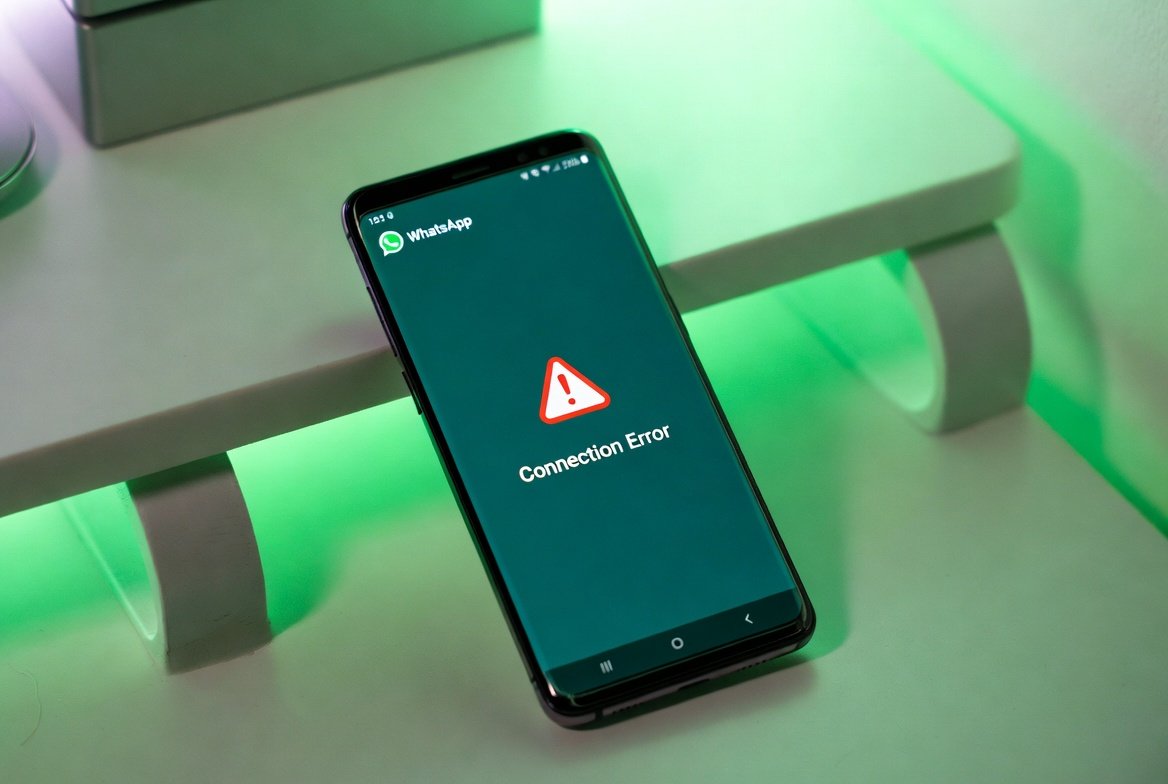
WhatsApp not working is one of the most stressful app problems you can face in 2026. Whether WhatsApp messages are not sending, the app refuses to open, calls keep dropping, or you are stuck on the connecting screen — losing access to WhatsApp disrupts your personal and professional life instantly.
With over 2 billion active users worldwide WhatsApp is the most used messaging app on the planet. When it stops working the frustration is real. The good news is that WhatsApp not working is almost always fixable within minutes using the right steps. In this complete guide we cover every proven fix for WhatsApp not working on both Android and iPhone in 2026 — from basic checks to advanced solutions.
Before diving in it is worth noting that if you are experiencing other app related issues on your device you can also check our guide on how to fix App Not Installed errors on Android which covers common app installation and compatibility problems in detail.
Why Is WhatsApp Not Working?
Understanding the cause of WhatsApp not working helps you find the right fix faster. The most common reasons WhatsApp stops working in 2026 include:
- Poor or no internet connection — the most common cause
- WhatsApp server outage — affects all users simultaneously
- Outdated WhatsApp version — causes compatibility issues
- Corrupted app cache — builds up over time and causes errors
- Phone storage full — prevents WhatsApp from functioning
- Date and time settings wrong — causes authentication failures
- Background data restricted — prevents WhatsApp from connecting
- Battery optimization killing WhatsApp — common on Android
- VPN conflicts — routes traffic incorrectly
- WhatsApp account issues — ban or verification problems
Now let’s fix WhatsApp not working with these proven solutions.
Fix 1: Check If WhatsApp Servers Are Down
Before troubleshooting your device always check if WhatsApp itself is having problems. Server outages affect millions of users simultaneously and no amount of device fixes will help until servers are back online.
How to check WhatsApp server status:
- Visit downdetector.com/status/whatsapp
- Check Twitter/X for #WhatsAppDown trending
- Visit isitdownrightnow.com and search WhatsApp
- Ask a friend on a different network if WhatsApp works for them
If WhatsApp servers are down the only fix is to wait. WhatsApp typically resolves server issues within 1-2 hours. If servers are working fine proceed to the fixes below.
Fix 2: Check Your Internet Connection
WhatsApp requires a stable internet connection to work. A weak or unstable connection causes messages to fail sending and calls to drop constantly.
Test your connection:
- Open your browser and try loading any website
- Try loading Google.com or any major site
- Run a speed test at speedtest.net
- Check if other apps are working normally
Fix your connection:
Wi-Fi issues:
→ Turn Wi-Fi off and back on
→ Forget network and reconnect
→ Restart your router
→ Move closer to router

Mobile Data issues:
→ Toggle Airplane mode on then off
→ Restart your phone
→ Check data balance
→ Switch between Wi-Fi and mobile data
If you are experiencing broader network issues on Windows devices our guide on fixing Windows 11 Wi-Fi disconnecting covers all network reset steps that also apply to your router setup.
Fix 3: Force Stop and Restart WhatsApp
Sometimes WhatsApp gets stuck in a bad state and simply needs to be force stopped and restarted.
On Android:
- Long press WhatsApp icon
- Tap App Info
- Tap Force Stop
- Confirm Force Stop
- Wait 10 seconds
- Reopen WhatsApp
On iPhone:
- Swipe up from bottom (or double press home button)
- Find WhatsApp in app switcher
- Swipe up to close it completely
- Wait 10 seconds
- Reopen WhatsApp
This simple fix resolves WhatsApp not working for many users immediately.
Fix 4: Clear WhatsApp Cache
Corrupted cache data is a major cause of WhatsApp not working properly on Android. Cache builds up over time and causes the app to malfunction.
On Android:
- Go to Settings
- Tap Apps or Application Manager
- Find and tap WhatsApp
- Tap Storage
- Tap Clear Cache (not Clear Data)
- Reopen WhatsApp and test
On iPhone: iPhone does not have a direct cache clear option. Instead:
- Offload the app: Settings → General → iPhone Storage → WhatsApp → Offload App
- Reinstall WhatsApp from App Store
- Your chats and media remain intact
Clearing cache regularly prevents WhatsApp from developing connection and loading issues over time.
Fix 5: Update WhatsApp to Latest Version
Running an outdated version of WhatsApp is a common cause of WhatsApp not working in 2026. WhatsApp regularly releases updates that fix bugs and improve stability.
On Android:
- Open Google Play Store
- Search WhatsApp
- Tap Update if available
- Wait for update to complete
- Reopen WhatsApp
On iPhone:
- Open App Store
- Tap your profile icon
- Scroll to find WhatsApp
- Tap Update if available
- Reopen WhatsApp after update
WhatsApp also ends support for older operating system versions periodically. Make sure your Android or iOS version is supported by checking WhatsApp’s official requirements.
Fix 6: Check Date and Time Settings
Incorrect date and time settings on your phone cause WhatsApp authentication to fail completely preventing it from connecting to servers.
On Android:
- Go to Settings
- Tap General Management or System
- Tap Date and Time
- Enable Automatic date and time
- Enable Automatic time zone
- Restart phone and reopen WhatsApp
On iPhone:
- Go to Settings
- Tap General
- Tap Date & Time
- Enable Set Automatically
- Restart and reopen WhatsApp
This fix specifically resolves WhatsApp showing “Connecting” endlessly or failing to verify your number.
Fix 7: Disable Battery Optimization for WhatsApp
On Android battery optimization aggressively kills background apps including WhatsApp. This causes delayed messages notification failures and constant disconnections.
On Android (General):
- Go to Settings
- Tap Battery
- Tap Battery Optimization or App Battery Usage
- Find WhatsApp
- Select Don’t Optimize or Unrestricted
- Restart phone
For Samsung users:
- Settings → Apps → WhatsApp
- Tap Battery
- Select Unrestricted
For Xiaomi/MIUI users:
- Settings → Apps → Manage Apps → WhatsApp
- Tap Battery Saver
- Select No restrictions
- Also enable Autostart for WhatsApp
This fix is especially important for Android users experiencing WhatsApp not receiving messages in background.
Fix 8: Enable Background Data for WhatsApp
If background data is restricted WhatsApp cannot connect when the screen is off causing messages to arrive late or not at all.
On Android:
- Go to Settings
- Tap Apps → WhatsApp
- Tap Mobile Data
- Enable Allow Background Data Usage
- Enable Allow Data Usage While Data Saver is On
Check Data Saver:
- Settings → Network → Data Usage
- Turn off Data Saver temporarily
- Test if WhatsApp works
Fix 9: Check Phone Storage
WhatsApp requires sufficient storage to function properly. When your phone storage is nearly full WhatsApp stops working correctly and cannot download media or send messages.
Check storage:
Android:
Settings → Storage →
Check available space
Need at least 1GB free
iPhone:
Settings → General →
iPhone Storage →
Check available space
Need at least 1GB free
Free up storage:
✅ Delete old photos and videos
✅ Clear WhatsApp media in WhatsApp Storage settings
✅ Delete unused apps
✅ Move photos to cloud storage
✅ Clear other app caches
If your Android phone is running slow due to storage issues our guide on fixing slow performance issues covers storage optimization techniques applicable across devices.
Fix 10: Disable VPN
VPN apps frequently cause WhatsApp not working by routing traffic through servers that WhatsApp blocks or that have poor connectivity.
- Open your VPN app
- Disconnect from current server
- Try WhatsApp without VPN
- If WhatsApp works the VPN is the problem
Solutions:
Option 1: Use WhatsApp without VPN
Option 2: Switch VPN servers
Option 3: Use a VPN that supports WhatsApp
Option 4: Enable split tunneling in VPN settings
          to exclude WhatsApp from VPN traffic
Fix 11: Reinstall WhatsApp
If none of the above fixes work a clean reinstall of WhatsApp resolves deep app corruption issues.
Important: Back up your chats before reinstalling.
Backup on Android:
- WhatsApp → Settings → Chats → Chat Backup
- Tap Back Up and wait for completion
Backup on iPhone:
- WhatsApp → Settings → Chats → Chat Backup
- Tap Back Up Now
Reinstall on Android:
- Long press WhatsApp → Uninstall
- Open Play Store → Search WhatsApp
- Install → Open → Verify your number
- Restore backup when prompted
Reinstall on iPhone:
- Long press WhatsApp → Remove App
- Open App Store → Search WhatsApp
- Install → Open → Verify your number
- Restore from iCloud backup when prompted
Fix 12: Check WhatsApp Account Status
If your WhatsApp account has been temporarily or permanently banned you will see a message saying your account is not allowed to use WhatsApp.
Temporary ban:
Cause:   Using unofficial WhatsApp versions
         like GBWhatsApp or WhatsApp Plus
Fix:     Uninstall unofficial version
         Install official WhatsApp
         Wait for ban to lift (usually 24-72 hours)
Permanent ban:
Cause:   Sending spam, reported by many users,
         or violating WhatsApp terms
Fix:     Email support@whatsapp.com
         Explain your situation
         Request account review
WhatsApp Not Working — Specific Problem Fixes
Contents
WhatsApp Messages Not Sending
✅ Check internet connection (Fix 2)
✅ Check if recipient blocked you
✅ Clear cache (Fix 4)
✅ Check storage (Fix 9)
✅ Update WhatsApp (Fix 5)
WhatsApp Calls Not Working
✅ Check internet speed — need 1Mbps minimum
✅ Disable VPN (Fix 10)
✅ Enable microphone permissions
✅ Clear cache (Fix 4)
✅ Check battery optimization (Fix 7)
WhatsApp Notifications Not Working
✅ Enable notifications in phone settings
✅ Disable battery optimization (Fix 7)
✅ Enable background data (Fix 8)
✅ Check Do Not Disturb settings
✅ Reinstall WhatsApp (Fix 11)
WhatsApp Web Not Working
✅ Scan QR code again
✅ Check internet on both phone and computer
✅ Clear browser cache
✅ Try different browser
✅ Restart WhatsApp on phone
WhatsApp Media Not Downloading
✅ Check storage space (Fix 9)
✅ Check internet connection (Fix 2)
✅ Enable background data (Fix 8)
✅ Clear cache (Fix 4)
How To Prevent WhatsApp Problems
Follow these tips to keep WhatsApp working smoothly:
✅ Keep WhatsApp updated always
✅ Only use official WhatsApp from Play Store or App Store
✅ Clear WhatsApp cache monthly
✅ Keep at least 2GB storage free
✅ Never use modified WhatsApp versions
✅ Keep your phone OS updated
✅ Disable battery optimization permanently
✅ Back up chats weekly
✅ Use stable internet connection
✅ Keep date and time set to automatic
Frequently Asked Questions
Why is WhatsApp not working only on my phone? If WhatsApp works for others but not you the problem is specific to your device or account. Follow Fix 4 (clear cache), Fix 6 (date and time) and Fix 7 (battery optimization) in order.
Why does WhatsApp keep disconnecting? Constant disconnections are usually caused by battery optimization killing WhatsApp in background. Fix 7 resolves this permanently on Android devices.
How do I know if someone blocked me on WhatsApp? Signs of being blocked include: only one tick on messages, cannot see last seen or profile photo, calls never connect, and cannot add the person to a group.
Why is WhatsApp not showing notifications? Notification issues are caused by battery optimization or notification settings being disabled. Fix 7 and checking notification permissions in phone settings resolves this.
Can WhatsApp be hacked? WhatsApp uses end-to-end encryption making it very secure. However phishing attacks and WhatsApp OTP scams exist. Never share your WhatsApp verification code with anyone. For more on digital security check our guide on protecting your digital privacy in 2026.
Why does WhatsApp work on Wi-Fi but not mobile data? Your mobile carrier may be blocking WhatsApp or you may have run out of data. Check your data balance and try disabling Data Saver in Fix 8.
Is it safe to use WhatsApp on public Wi-Fi? WhatsApp is encrypted so messages are safe. However use a trusted VPN when on public Wi-Fi for additional security. Just make sure the VPN doesn’t conflict with WhatsApp as covered in Fix 10.
How long do WhatsApp outages last? Most WhatsApp outages last between 30 minutes and 3 hours. The longest outage in WhatsApp history was 6 hours in October 2021 affecting all Meta services.
Fix WhatsApp Not Working Today
WhatsApp not working in 2026 is fixable with the right approach. Start with Fix 1 (check server status) and Fix 2 (check internet) as these cover the most common causes. Then try Fix 4 (clear cache) and Fix 7 (battery optimization) which solve the problem for the vast majority of Android users.
For iPhone users Fix 5 (update WhatsApp) and Fix 10 (disable VPN) are the most effective starting points.
For official WhatsApp help visit the WhatsApp FAQ and Help Center and check the official WhatsApp troubleshooting page for the latest guidance.
Bookmark this page and share it with anyone facing WhatsApp problems in 2026.
For more free SEO and web tools visit ZapWebTools.com
