

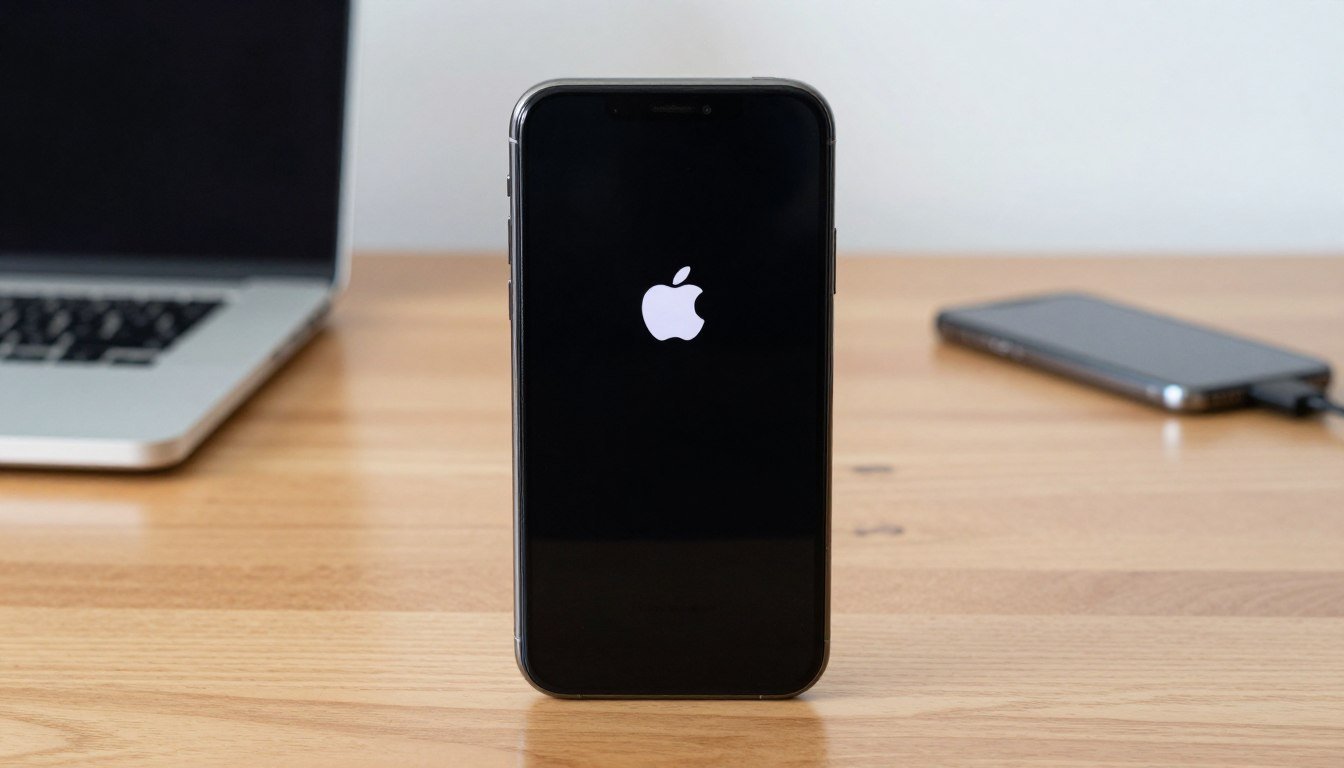
Have you ever picked up your phone, expecting to see your home screen? But instead, it’s stuck on the Apple logo. This can be really scary, as we all use our phones every day.
I once found myself in this situation. I was worried about losing my photos and messages. It was a really frustrating experience that made my day worse.
After hours of research, I found ways to fix my phone. In this guide, I’ll share what worked for me. My aim is to help you fix your common technical problem easily. Let’s get your phone working again together.
Contents
- 1 Key Takeaways
- 2 Defining the boot loop cycle
- 3 Common triggers for startup failures
- 4 Impact of recent iOS 17 and 18 updates
- 5 Third-party app conflicts causing boot issues
- 6 Corrupted firmware installation processes
- 7 Storage capacity limitations during system upgrades
- 8 Checking for physical damage and liquid exposure
- 9 Verifying battery health and charging port integrity
- 10 Executing a hard reset on iPhone 15 and 16 models
- 11 Performing a force restart on older iPhone generations
- 12 Connecting to a computer for system restoration
- 13 Differentiating between update and restore options
- 14 Understanding the Device Firmware Update process
- 15 Risks and benefits of deep-level system recovery
- 16 Identifying signs of logic board damage
- 17 Navigating Apple Support and authorized service providers
- 18 Maintaining regular iCloud and computer backups
- 19 Managing storage space to prevent system crashes
- 20 What exactly is happening when my iPhone is caught in a boot loop?
- 21 Can the latest iOS 17 or iOS 18 updates cause an apple logo freeze?
- 22 What are the first steps I should take if my iphone not turning on properly?
- 23 How do I perform a force restart on the latest iPhone 15 and 16 models?
- 24 What is the difference between Recovery Mode and DFU Mode when trying to fix iphone boot loop issues?
- 25 Could a lack of storage space really cause my iphone stuck on apple logo?
- 26 When should I stop DIY troubleshooting and contact Apple Support?
- 27 How can I prevent an iphone boot problem from happening again in the future?
Key Takeaways
- Identify why your device might be caught in a boot loop.
- Learn the safest ways to force restart your hardware.
- Discover how to use recovery mode to fix software glitches.
- Understand when it is time to seek professional repair help.
- Gain confidence in troubleshooting your own mobile technology.
Understanding the iPhone stuck on Apple logo phenomenon
When your device won’t start past the white logo, it’s a sign of trouble. It’s like a protective mechanism in iOS. The system stops the phone from loading bad data to avoid damage.
Defining the boot loop cycle
The boot loop cycle happens when the system can’t start right. Your phone tries to load important parts but fails. This makes it show the logo, then black out, and start again.
This is like the phone saying it can’t check the software. It’s a loop to keep your hardware safe while you fix the problem.
Common triggers for startup failures
An iphone startup issue often comes from interrupted updates or bad system files. If a process stops, the phone can’t find how to start up again.
Other common reasons include:
- Apps that don’t work well with the system startup.
- Not enough space for the OS to write files.
- Problems with the hardware, like a bad battery or damaged board.
Finding out why your iPhone stuck on Apple logo is key. Knowing the cause helps you fix it and get your phone working again.
Recent reports and software trends affecting iOS stability
Many users face an iPhone stuck on Apple logo after new system patches. The fast pace of mobile system updates can cause problems. These updates can make the boot process unstable.
Impact of recent iOS 17 and 18 updates
IOS 17 and 18 brought big changes to how devices start up. These updates aim to make devices safer and faster. But, they can cause iphone startup issue for some devices.
I think these updates need a better check to work with all devices.
Software stability is the cornerstone of the user experience, yet even the most refined updates can encounter friction when interacting with legacy hardware components.
Third-party app conflicts causing boot issues
Third-party apps can also cause boot problems. If an app isn’t ready for the latest iOS, it might try to use system resources during start-up. This can make the device hang on the logo screen.
The table below shows common software problems that cause boot failures:
| Trigger Category | Primary Cause | Resulting Behavior |
|---|---|---|
| OS Update | Corrupted firmware | Boot loop cycle |
| App Conflict | Incompatible API | Logo freeze |
| Storage Full | Insufficient cache | Startup failure |
Knowing these trends helps avoid iphone startup issue. Keep apps updated and watch your storage. This can help prevent your device from getting stuck.
Why your iPhone boot problem occurs after updates
Many users face an iphone boot problem after new software is installed. Updates aim to boost security and performance. But, the process can fail sometimes.
This failure can trap your device. It won’t let you reach the home screen.
Corrupted firmware installation processes
A corrupted firmware file is often the main cause. If your internet drops or power changes while updating, it can fail. This leaves your system broken.
Your device needs a certain order to start up. If this order is damaged, it can’t check the software’s integrity. So, it keeps restarting, trying to load the system files right.
Storage capacity limitations during system upgrades
Not enough space is another common problem. Big iOS updates need a lot of room to install. If your storage is almost full, the update might fail.
I suggest having lots of free space before big updates. Without it, your device can’t handle the temporary files needed. Proper space management helps your device upgrade smoothly.
Initial diagnostic steps for an iPhone not turning on
Before you try to fix software problems, check for physical issues first. Many think their phone has a big software problem when it’s really something you can see. Just a quick look can save you a lot of time.
Checking for physical damage and liquid exposure
First, look for any damage like cracks or dents. Even small drops can hurt your phone’s inside parts. This can make it seem like a software problem.
Also, check the Liquid Contact Indicator (LCI) in the SIM tray. If it’s red, your phone got wet. Liquid damage can cause problems, like not turning on. Don’t plug it in if you think it’s wet.
Verifying battery health and charging port integrity
Maybe your phone just can’t get enough power. Use a flashlight to see if the charging port is blocked. Dirt or bent pins can stop your phone from starting.
If the port looks good, think about your battery. Old batteries might not hold a charge. This can make your phone keep trying to start but can’t.
| Symptom | Likely Hardware Cause | Recommended Action |
|---|---|---|
| No response to charger | Debris in charging port | Clean port carefully |
| Red LCI indicator | Liquid damage | Seek professional repair |
| Screen flickers/lines | Physical display damage | Replace screen assembly |
| Device gets very hot | Battery or logic board short | Disconnect and consult support |
Force restarting your device to clear the Apple logo freeze
When your screen gets stuck on the Apple logo, try a force restart. This non-destructive method fixes system glitches without losing your data. It’s a quick fix for an iphone stuck on apple logo.
This method stops the processor and starts your phone fresh. It’s the first thing I try for an apple logo freeze.
Executing a hard reset on iPhone 15 and 16 models
Newer iPhones need a special reboot sequence. If your iphone boot problem is on these models, follow these steps:
- Press and quickly release the Volume Up button.
- Press and quickly release the Volume Down button.
- Press and hold the Side button until the screen goes black and the Apple logo reappears.
When the logo shows up, let go of the button. Your phone should go to the lock screen.
Performing a force restart on older iPhone generations
Older iPhones have different button combinations. For iPhone 8 to 14, the steps are the same:
- Quickly press and release the Volume Up button.
- Quickly press and release the Volume Down button.
- Hold the Side button until the device restarts and the logo appears on the display.
For iPhone 7 and older, press Volume Down and Sleep/Wake together. No matter the model, hold the buttons until it turns off. This method is the best for fixing startup issues.
Using Recovery Mode to fix iPhone boot loop issues
When iphone troubleshooting doesn’t work, Recovery Mode helps. It lets your computer talk directly to the iPhone’s hardware. This can fix big software problems.

Connecting to a computer for system restoration
First, plug your iPhone into a computer with a good cable. If you have a Mac, use Finder. For Windows, open iTunes.
Then, start the recovery process while it’s connected. This is key if your iPhone won’t turn on. It makes the system look for a recovery image instead of booting up.
“Patience is the most important tool in any technical repair, as rushing the process often leads to avoidable errors.”
Differentiating between update and restore options
When your computer sees your iPhone, it will ask to Update or Restore. Picking Update is safer. It tries to fix the iOS without losing your stuff.
If Update doesn’t work, you might need to choose Restore. But be careful. This will erase everything on your iPhone. Make sure you have a backup to get your stuff back.
Advanced DFU mode restoration for persistent startup issues
When simple fixes don’t work, I use DFU mode. It’s a deep system fix for your device. It’s key for advanced iphone troubleshooting when your phone won’t do basic things.
Understanding the Device Firmware Update process
DFU mode lets your device talk to iTunes or Finder without starting up. It installs new firmware directly. This is how you fix iphone boot loop problems.
This method works well because it talks to the hardware directly. It removes the bad code that makes your apple logo freeze. Try this only after other fixes don’t work.
Risks and benefits of deep-level system recovery
DFU mode is great for fixing tough software problems. But, it will completely erase your device’s data. Make sure you have a recent backup before you start.
The table below shows how different fixes compare for your device:
| Method | Data Retention | Complexity | Primary Use |
|---|---|---|---|
| Force Restart | Full | Low | Minor glitches |
| Recovery Mode | Partial | Medium | Update/Restore |
| DFU Mode | None | High | Deep system repair |
Using DFU mode is a big step in iphone troubleshooting. If you’re not tech-savvy, be careful. Doing this right can fix your phone and get it back to new.
When to seek professional help for hardware failures
When software fixes don’t work, the problem is often with the device’s parts. I always suggest trying iphone troubleshooting first. But, there’s a point where trying more can hurt your device.

Identifying signs of logic board damage
A failing logic board is often the cause of fix iphone boot loop issues. You might notice your device getting very hot. This is a sign that something inside is not working right.
Also, if your phone got dropped or wet before it stopped working, it might be damaged. If it stays iphone stuck on boot screen after trying to fix it, it could have a short circuit. In these cases, you need a pro to check it out.
When you can’t fix it yourself, it’s time to call the experts. Start by visiting the Apple Support website for a remote test. This will tell you if it’s a hardware problem.
If the test shows a hardware issue, make an appointment at an Apple Store or an Apple Authorized Service Provider. Make sure to back up your data and have your receipt ready. Professional technicians have the right tools to fix your device safely.
Preventive measures to avoid future iPhone stuck on boot screen errors
Stopping an iphone stuck on boot screen is easier than fixing it later. Most people only think about maintenance when it’s too late. Simple habits can keep your device running well and avoid the hassle of a stuck system.
Maintaining regular iCloud and computer backups
When your device won’t start, losing data is a big risk. I recommend automatic iCloud backups to save your photos, messages, and app data every day. Or, you can back up locally on a computer for more security.
Having a recent backup keeps your info safe if your device crashes. Check your backup status in settings every month. This simple step helps you avoid surprises when your system fails.
Managing storage space to prevent system crashes
A full storage drive often causes an iphone stuck on boot screen. When your device is full, it can’t do important tasks. Keep 5GB to 10GB free to help iOS work right during updates.
Manage your storage by checking big files in messages or deleting unused apps. Clearing cache and deleting duplicate photos also helps. Keeping your storage in check stops crashes and boot loop issues.
| Backup Method | Storage Location | Ease of Use | Security Level |
|---|---|---|---|
| iCloud | Apple Servers | High | Encrypted |
| Finder/iTunes | Local Computer | Medium | High (Local) |
| Third-Party Cloud | External Server | Medium | Variable |
By following these steps, you lower the chance of your device failing. Regular backups and smart storage use are key to avoiding an iphone stuck on boot screen. These small steps today can save you a lot of trouble later.
Conclusion
When your iPhone gets stuck on the boot screen, it’s really frustrating. You need it for everything. I’ve shared the best ways to fix this problem.
You can now solve startup issues with ease. Keeping your storage clean and backing up regularly helps. This way, your data stays safe.
It’s important to share your experiences with these fixes. Your stories help others deal with the same problem.
Make sure to update your iPhone regularly. This keeps it running smoothly. Small steps today avoid big problems later.
